|
|
|
|||
|
How to install a certificate on a remote server
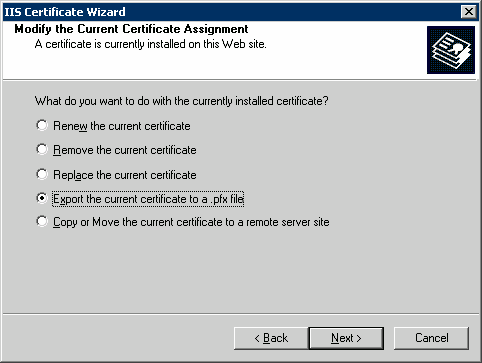
In a case, you have one or more web servers using the same domain and certificate. You can export the certificate as pfx file and then import it to other web server. To install a certificate on other server, please follow these steps;
8. Follow the instruction to finish exporting.
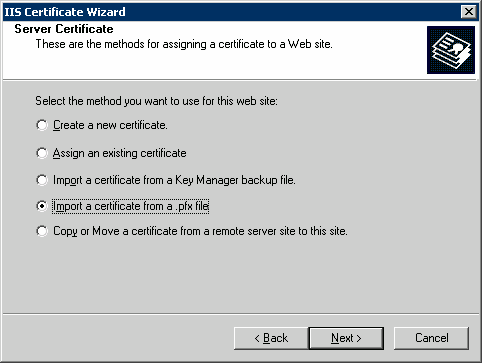
9. on the server you want to import the pfx file, Run IIS and run Server Certificate.
10. On the Server Certificate page, check import the certificate frm a .pfx file and then click Next.
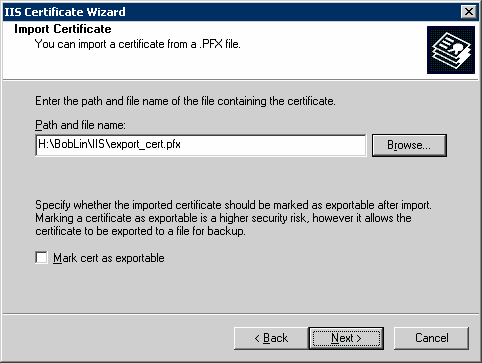
11. browse to the exported pfx and click Next to finish importing.
12. After importing, you should be able to access the server web site using SSL (Note: the port must different from first server).
Post your questions, comments, feedbacks and suggestions Related Topics
|
|
|
This web is provided "AS IS" with no warranties.
Copyright © 2002-2018
ChicagoTech.net,
All rights reserved. Unauthorized reproduction forbidden.