Home | Troubleshooting |

 Cisco How to| Local Search | Site Map | Forums| Windows Vista | Services  | Careers  | Contact Us| About Us     


How to Enable Group Policy Loopback

To apply User Configuration GPO settings to users only when they log on to the Terminal Servers, you may want to use the Group Policy loopback feature. This feature limits user configuration per computer and will not apply to others.

To Enable Group Policy Loopback, follow these steps:

1. Run Active Directory Users and Computers.

2. Right-click on the OU for the GPO.

3. Select the GPO and the Edit.

4. Click Computer Configuration and then Administrative Templates>System>Group Policy.

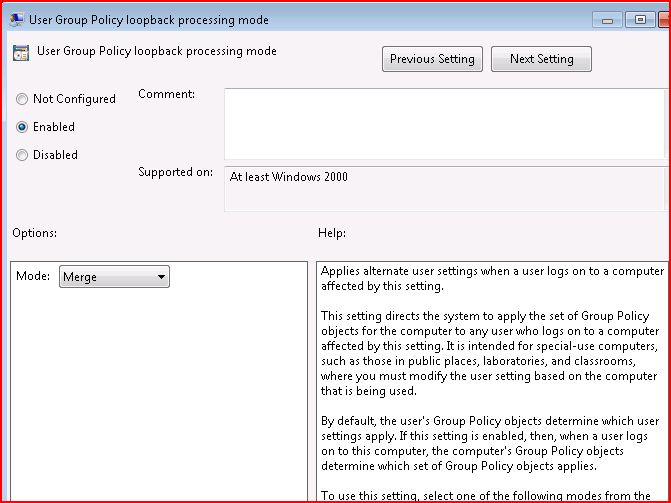
5. Double-click on the User Group Policy loopback processing mode.

6. Check Enabled and the OK to close.

NOTE: Loopback is supported only in a purely Windows 2000 based environment. Both the computer account and the user account must be in Active Directory. If a Microsoft Windows NT 4.0 based domain controller manages either account, the loopback does not function. The client computer must be a Windows 2000 based computer.

When users work on their own workstations, you may want to have Group Policy settings applied based on the location of the user object. Therefore, it is recommended that you configure policy settings based on the organizational unit (OU) in which the user account resides. However, there may be instances when a computer object resides in a specific OU, and the user settings of a policy should be applied based on the location of the computer object instead of the user object.

NOTE: You cannot filter the application of user settings by denying or removing the AGP and Read rights from the computer object specified for the loopback policy.

Normal user Group Policy processing specifies that computers located in their OU have the GPOs applied in order during computer startup. Users in their OU have GPOs applied in order during logon, regardless of which computer they log on to.

In some cases, this processing order may not be appropriate (for example, when you do not want applications that have been assigned or published to the users in their OU to be installed while they are logged on to the computers in some specific OU). With the Group Policy loopback support feature, you can specify to other ways to retrieve the list of GPOs for any user of the computers in this specific OU:

Merge Mode
In this mode, when the user logs on, the user's list of GPOs is gathered normally by using the GetGPOList function. The GetGPOList function is then called again, using the computer's location in Active Directory. The list of GPOs for the computer is then added to the end of the GPOs for the user. This causes the computer's GPOs to have higher precedence than the user's GPOs. In this example, the list of GPOs for the computer is added to the user's list.

Replace Mode
In this mode, the user's list of GPOs is not gathered. Only the list of GPOs based on the computer object is used.

Related Topics

How to create a new OU

How to create a Group Policy Object

How to Enable Group Policy Loopback

How to add the computer account or user accounts to the GPO

Post your questions, comments, feedbacks and suggestions

Contact a consultant

Related Topics

Setup Group Policy to restrict intenet access

To setup Group Policy to restrict Internet Access, follow these steps. 1. Open Group Policy by running gpedit if you use local group policy or running ...
www.howtonetworking.com/Internet/restrictie11.htm

Group Policy

The Group Policy doesn't apply or take long time to update. How to use Group Policy to Hide local drives. To use Group Policy to Hide local drives, ...
www.chicagotech.net/group%20policy.htm

Top 10 checklist of group policy troubleshooting

Have you refreshed the Group Policy settings? - Run gpupdate /force. ... Have you checked the health of the Group Policy objects on domain controllers. ...
www.chicagotech.net/Security/gp10checklist.htm


Hit Counter   This web is provided "AS IS" with no warranties.
Copyright © 2002-2009 ChicagoTech.net, All rights reserved. Unauthorized reproduction forbidden.