|
How to
configure Windows Time Server to use an external time source on a Windows
2003/2008
To Windows Time Server to use an
external time source on a Windows 2003/2008, please follow these steps:
|
1. |
Change the server
type to NTP. To do this, follow these steps:
|
a. |
Click Start,
click Run, type regedit, and then click OK. |
|
b. |
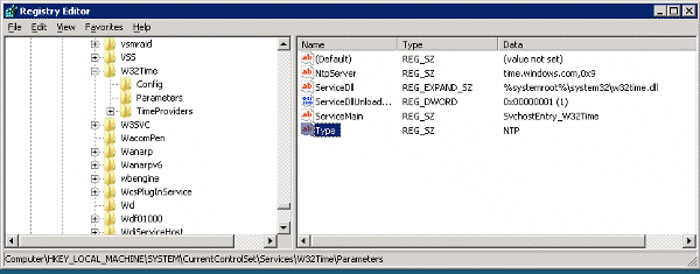
Locate and then
click the following registry subkey:
HKEY_LOCAL_MACHINE\SYSTEM\CurrentControlSet\Services\W32Time\Parameters\Type |
|
c. |
In the right
pane, right-click Type, and then click Modify. |
|
d. |
In Edit Value,
type NTP in the Value data box, and then click OK. |
|
|
2. |
Set AnnounceFlags to
5. To do this, follow these steps:
|
a. |
Locate and then
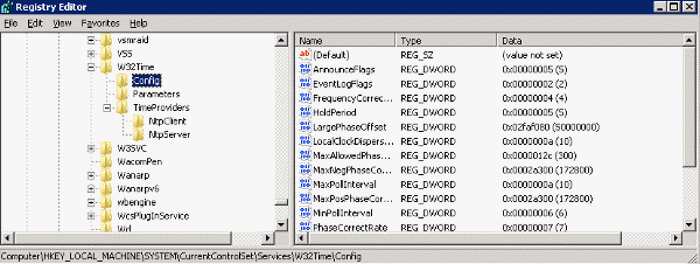
click the following registry subkey:
HKEY_LOCAL_MACHINE\SYSTEM\CurrentControlSet\Services\W32Time\Config\AnnounceFlags |
|
b. |
In the right
pane, right-click AnnounceFlags, and then click Modify. |
|
c. |
In Edit DWORD
Value, type 5 in the Value data box, and then
click OK. |
|
|
3. |
Enable NTPServer. To
do this, follow these steps:
|
a. |
Locate and then
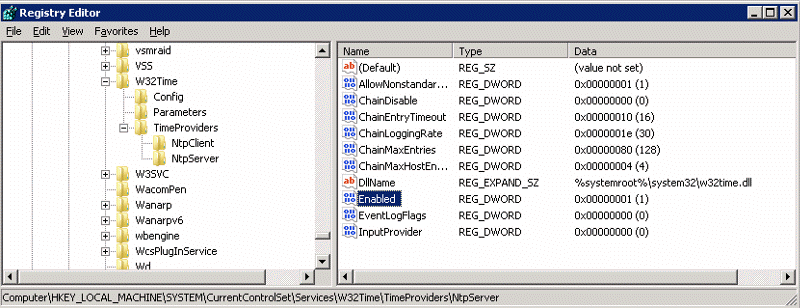
click the following registry subkey:
HKEY_LOCAL_MACHINE\SYSTEM\CurrentControlSet\Services\W32Time\TimeProviders\NtpServer |
|
b. |
In the right
pane, right-click Enabled, and then click Modify. |
|
c. |
In Edit DWORD
Value, type 1 in the Value data box, and then
click OK. |
|
|
4. |
Specify the time
sources. To do this, follow these steps:
|
a. |
Locate and then
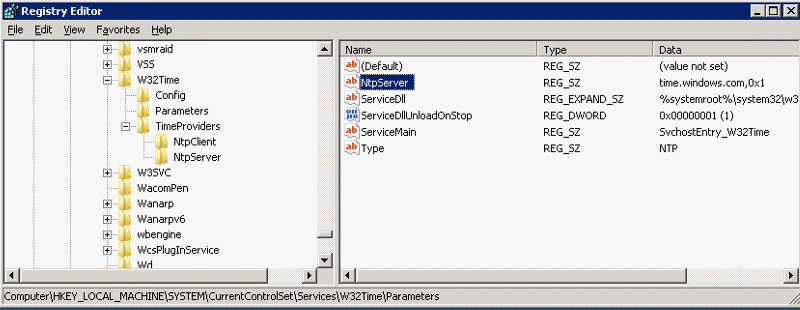
click the following registry subkey:
HKEY_LOCAL_MACHINE\SYSTEM\CurrentControlSet\Services\W32Time\Parameters\NtpServer |
|
b. |
In the right
pane, right-click NtpServer, and then click Modify. |
|
c. |
In Edit Value,
type Peers in the Value data box, for example
time.windows.com, and then click OK. Note:
each DNS must be unique and you must append 0x1
to the end of each DNS name otherwise changes will not take effect |
|
|
5. |
Select the poll
interval. To do this, follow these steps:
|
a. |
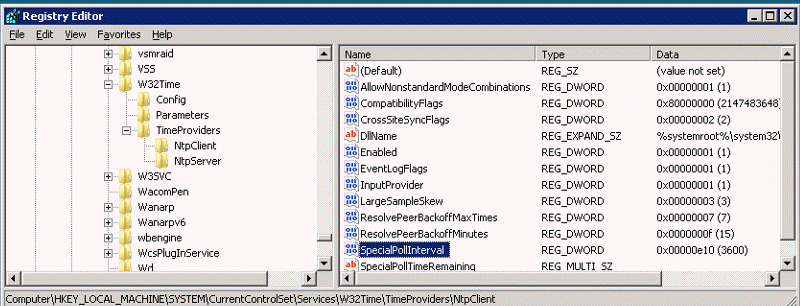
Locate and then
click the following registry subkey:
HKEY_LOCAL_MACHINE\SYSTEM\CurrentControlSet\Services\W32Time\TimeProviders\NtpClient\SpecialPollInterval |
|
b. |
In the right
pane, right-click SpecialPollInterval, and then click
Modify. |
|
c. |
In Edit DWORD
Value, type TimeInSeconds in the Value data box,
for example 3600 Decimal (60 minutes) and then click OK. |
|
|
6. |
Configure the time
correction settings. To do this, follow these steps:
|
a. |
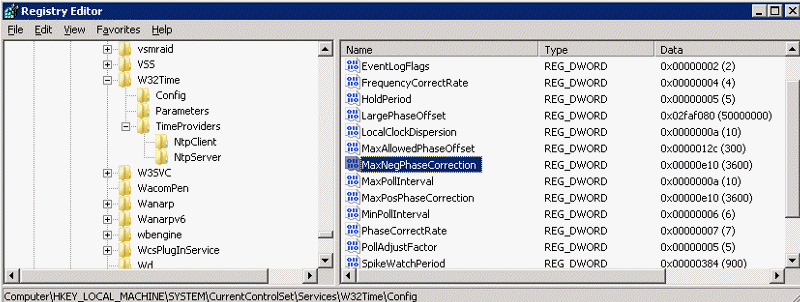
Locate and then
click the following registry subkey:
HKEY_LOCAL_MACHINE\SYSTEM\CurrentControlSet\Services\W32Time\Config\MaxPosPhaseCorrection |
|
b. |
In the right
pane, right-click MaxPosPhaseCorrection, and then click
Modify. |
|
c. |
In Edit DWORD
Value, click to select Decimal in the Base box. |
|
d. |
In Edit DWORD
Value, type TimeInSeconds in the Value data box,
for example 3600 (1 hour) and then click OK. |
|
e. |
Locate and then
click the following registry subkey: HKEY_LOCAL_MACHINE\SYSTEM\CurrentControlSet\Services\W32Time\Config\MaxNegPhaseCorrection
|
|
f. |
In the right
pane, right-click MaxNegPhaseCorrection, and then click
Modify. |
|
g. |
In Edit DWORD
Value, click to select Decimal in the Base box.
|
|
h. |
In Edit DWORD
Value, type TimeInSeconds in the Value data box,
for example, 3600 (1 hour) and then click OK. |
|
|
7. |
Quit Registry Editor. |
|
8. |
At the command
prompt, type the following command to restart the Windows Time service,
and then press ENTER:
net stop w32time
&& net start w32time |
Note: to test it, execute this
command: net time /querysntp
Post your questions, comments, feedbacks and suggestions
Contact a consultant
Related Topics
|
|