|
|
|
|||
|
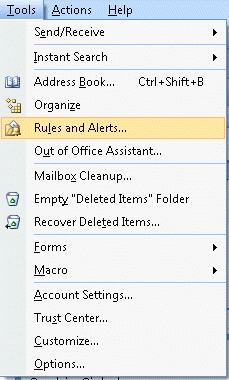
How to create an Auto Reply rule using Microsoft Outlook 2007 1.
Open Outlook
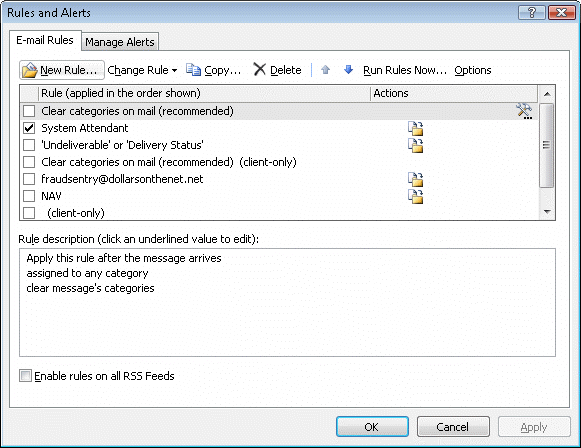
3. Click New Rule
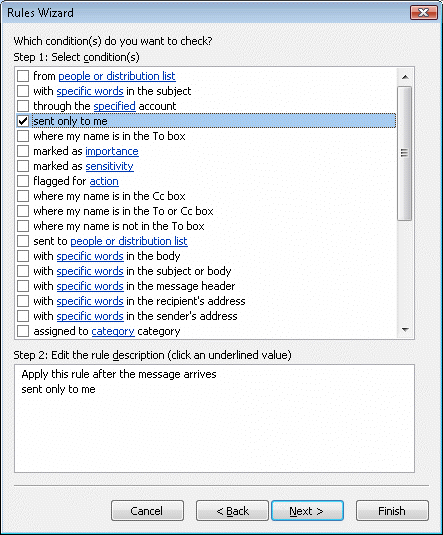
4. Check send only to me
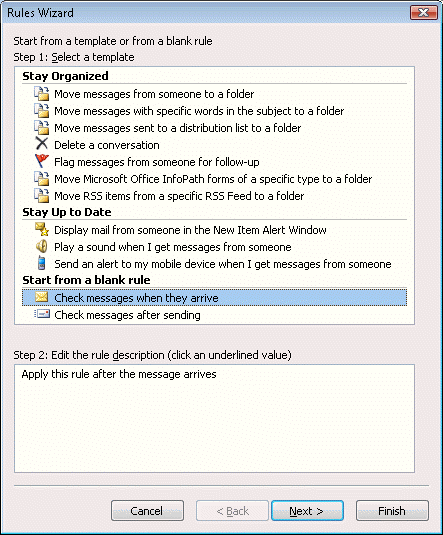
5. Highlight Check messages when they arrive under Start from a blank rule
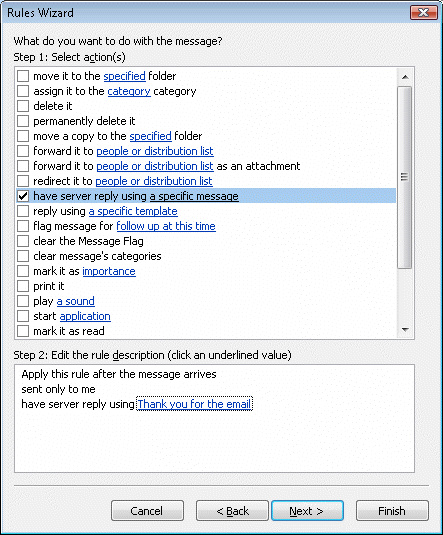
6. Check have server reply using a specific message. In the bottom box, click the underlined link a specific message
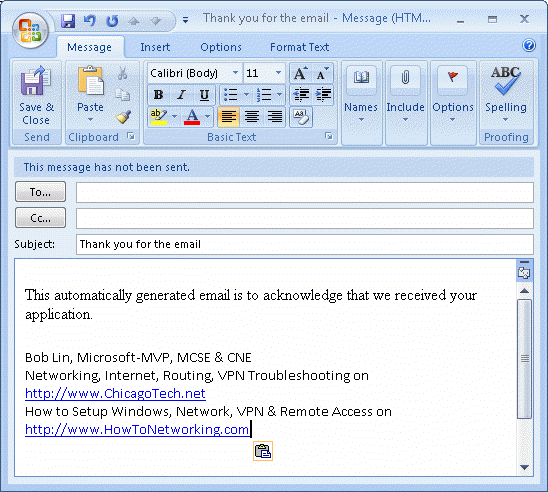
7. A blank email form will pop up; this will be your Auto Reply template that your senders will receive. Simply fill out the subject line and message body with the information you want your message to say while you are away. When you are done, click Save and Close, then click Next twice to finish it.
Post your questions, comments, feedbacks and suggestions Related Topics
|
|
|
This web is provided "AS IS" with no warranties.
Copyright © 2002-2018
ChicagoTech.net,
All rights reserved. Unauthorized reproduction forbidden.